I’ve been tinkering with dashboards for years — not because I love spreadsheets for their own sake, but because having one simple page that shows what matters most keeps my days calm and intentional. Over time I pared down a cluttered app-jump routine into a one-page productivity dashboard that lives in Google Sheets and Notion, uses a couple of free automations, and takes less than five minutes each morning to scan. In this post I’ll walk you through how I built it using free tools, how I choose the components, and how you can adapt the same approach for your life or work.
Why a one-page dashboard?
We already have lots of tools: calendars, to-do apps, habit trackers, email. The problem isn’t lack of features — it’s context switching. A one-page dashboard acts like a morning ritual: a place to review priorities, see your calendar, glance at habits, and track one or two metrics (like billable hours or steps). For me, it’s about reducing friction and making decisions faster. If everything I need is visible in a glance, I waste less time deciding what to do next.
Which free tools I use (and why)
- Google Sheets — flexible layout, easy formulas, and shareable. I use it to host the live dashboard because it’s quick to edit and can display charts and conditional formatting.
- Notion — a nicer-looking hub when I need more context (notes, links, resources). I embed the Google Sheet into a Notion page for the polished view.
- Google Calendar — everyone uses it; syncing your day into the dashboard is essential. Google Sheets can pull calendar events via scripts or third-party integrations.
- Ifttt / Make (formerly Integromat) — for simple integrations that push data into the sheet (like a finished Pomodoro session or a new task completed in Todoist).
- Google Forms — an easy way to log quick metrics or micro-journaling entries that feed into Sheets automatically.
Core components I include
My dashboard is intentionally minimal. Here’s what I find useful — pick and choose what fits you.
- Today’s Top 3 — a short list of non-negotiable tasks for the day. I keep this at the top and don’t allow more than three items.
- Calendar at a glance — a simplified view of today’s events (start time, title, duration). It helps me slot tasks around meetings.
- Task progress — a compact progress bar of tasks completed vs. planned (I use simple formulas in Sheets).
- Habit tracker — three habits I’m focusing on this month with green/red markers for each day.
- One metric — something measurable: deep work hours, steps, words written, or billable hours. Fewer metrics = less noise.
- Quick links / bookmarks — links to the day’s documents or reference pages so I don’t hunt for tabs.
- Notes / Tomorrow — a tiny place for thoughts and one thing to carry forward to the next day.
Layout in Google Sheets
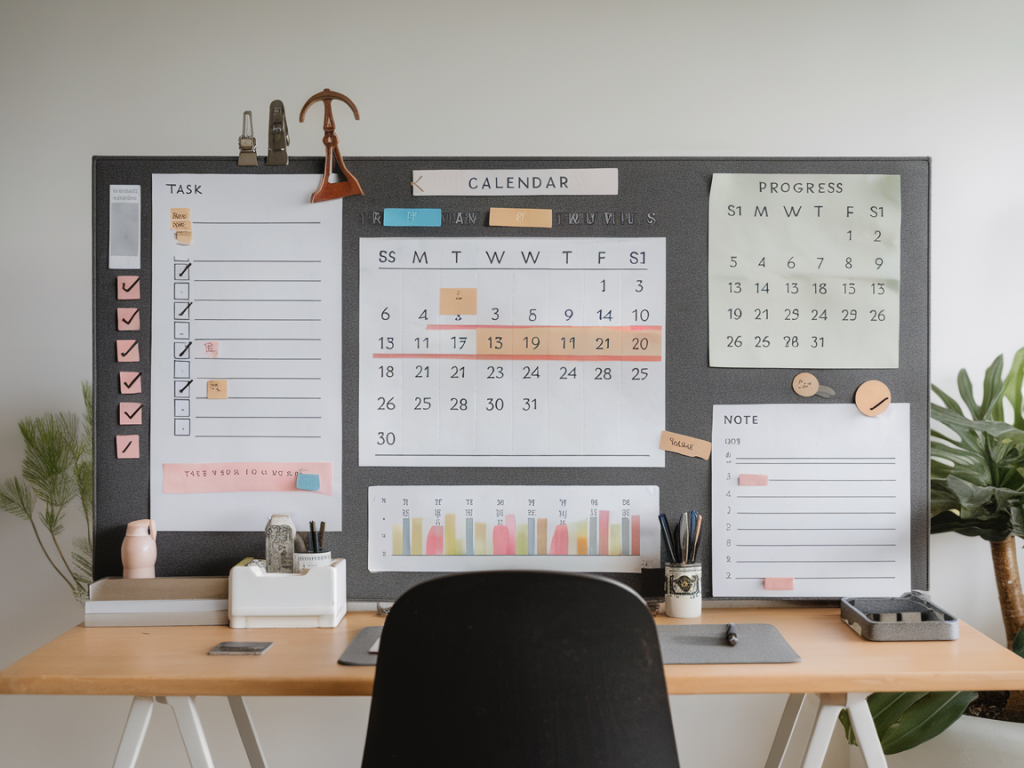
Sheets gives you enough layout control to make the dashboard readable. I use a single sheet with frozen header rows and columns. Here’s a simple structure I follow:
| Top-left | Today’s Top 3 + small timer widget (Pomodoro) |
| Top-right | Calendar summary + next meeting |
| Middle | Task progress bar and habit tracker |
| Bottom | Metric chart and quick notes |
Use cell merges for larger “cards” and conditional formatting to turn numbers into visual cues (green for meeting goals, yellow for warnings). Simple sparkline charts work well for a month’s trend of a single metric.
How to pull calendar events into Sheets (free)
If you’re comfortable using Google Apps Script, a short script can pull events from your Google Calendar into the sheet. If you want zero code, Make.com and IFTTT both have free tiers that can append calendar events into a Google Sheet automatically. I use a small script that runs every 15 minutes to populate a “today events” range — it shows start time, title, and a link to the event.
Tracking tasks and progress
I keep tasks lightweight. My process:
- Capture every task in Todoist or Asana (free tiers work fine) so nothing gets lost.
- Every morning, choose the Top 3 and paste them into the sheet’s Today’s Top 3 area — this ritual helps prioritise.
- Use a simple formula to count completed tasks: =COUNTIF(range, "Done") / COUNTA(range) and show it as a percentage with a progress bar.
If you prefer automation, you can connect Todoist to Google Sheets via Make.com to mark tasks as done automatically, but I like the manual paste — it forces a moment of decision.
Habit tracker and one metric
For habits I create a mini-grid with dates across the top and habits down the side. I use checkboxes in Sheets and conditional formatting that fills the cell green when checked. For the metric (e.g., deep work minutes), I log sessions via Google Forms or a quick script that appends the minutes to a column; a sparkline then shows weekly trends.
Making it pretty (and useful)
Presentation matters because you actually have to want to look at the dashboard. Here are a few small things I do:
- Use a limited colour palette: one primary (green or blue), one neutral (grey), and a warning colour (orange).
- Keep fonts readable (Sheets default is fine), increase row heights for “card” areas, and use borders sparingly.
- Use emojis for tiny visual cues (a calendar emoji for meetings, a fire emoji for the metric).
- Embed the Sheet in Notion if you want a softer, more blog-like landing page that still shows live data.
Useful automations that stay free
Automation keeps your dashboard current without manual copy-paste. Here are automations I’ve found reliably free:
- Google Calendar → Google Sheets via Make (limited free operations) or a short Google Apps Script.
- Google Forms → Sheets for quick logging (no external tools required).
- Tweets, RSS, or Stripe receipts → Sheets via IFTTT (useful if you track external income or mentions).
Maintenance and a simple morning routine
A dashboard only works if you look at it. My maintenance routine is tiny:
- Morning (3–5 minutes): update Today’s Top 3, glance calendar, check habits, and log any overnight metrics.
- Midday (optional, 1 minute): glance progress bar and adjust if needed.
- End of day (2 minutes): tick off completed tasks, jot one sentence in Notes, and set the one thing to carry into tomorrow.
Every Sunday I tidy the sheet (clear old rows, update the month’s habit grid) — five minutes keeps the dashboard fresh.
Common questions I get
What if I use other apps? You can replicate this approach in Notion alone (database views), Airtable (free tier), or even Trello. The key is one central view that aggregates. Notion is lovely for aesthetics and mixing content types, Airtable is powerful for linked records, and Google Sheets is fastest for calculations.
Isn’t this extra work? It can be at first. The payoff is fewer decision points during the day. If you keep your dashboard minimal (Top 3 + calendar + one metric), the time you invest is reclaimed through quicker, clearer choices.
How do I avoid obsession? Limit metrics and checks. I set alarms only for focus sessions and avoid refreshing data constantly. The dashboard is a guide, not an audit.
If you’d like, I can share a template of the Google Sheet layout I use (with example formulas and a habit tracker). Tell me whether you prefer Sheets-only or a Notion-embedded version and I’ll prepare the template you can copy and adapt.